
Profile Guide
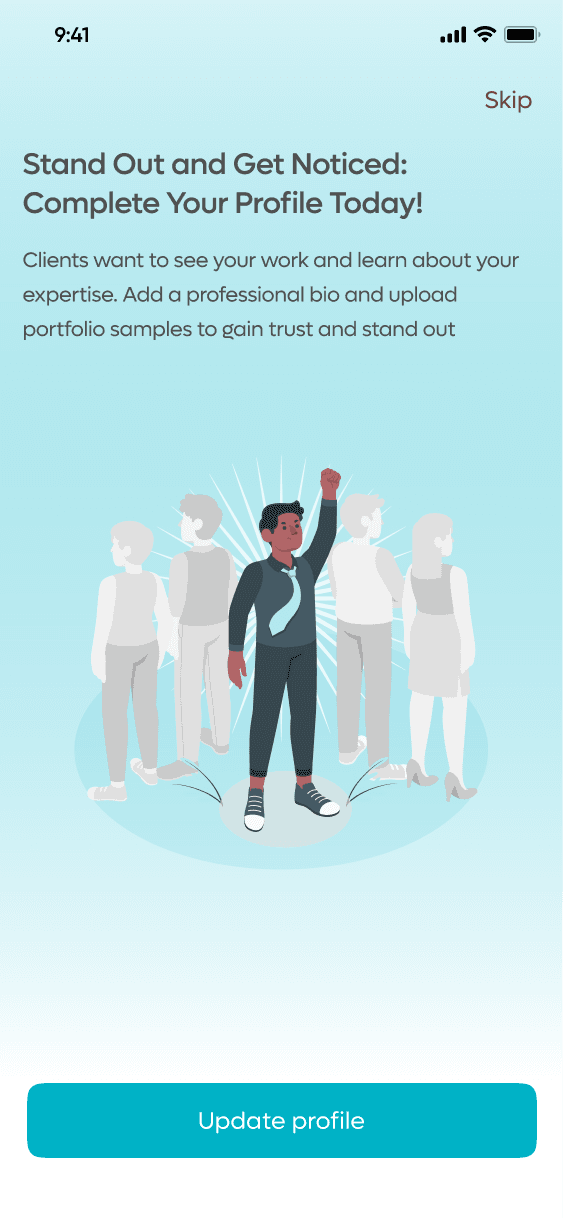
Stand out and get noticed.
A complete profile makes you look professional and dramatically increases your chances of being contacted for jobs. Follow these six steps to set yours up properly.
Add a profile photo
Your photo is the first impression clients get. Use a clear, professional image — a well-lit headshot or a photo of you doing your work. Profiles with photos get significantly more contact requests than those without.
Tip: A photo of you in your work environment (painting a wall, cutting hair, wiring a panel) builds instant credibility.
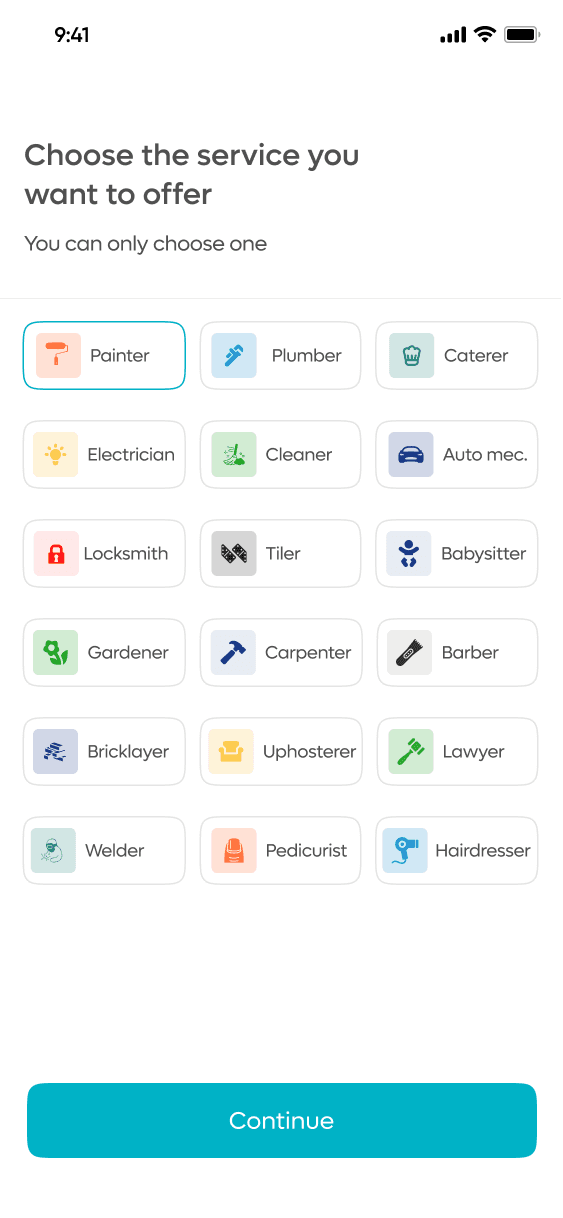
Choose your profession
Select the service you want to offer from MiObodo's full list. You can only choose one primary service — pick the one you do best and want to be known for. This determines which searches you appear in.
Tip: Be specific. "Interior Decorator" will connect you with better-matched clients than a generic category.
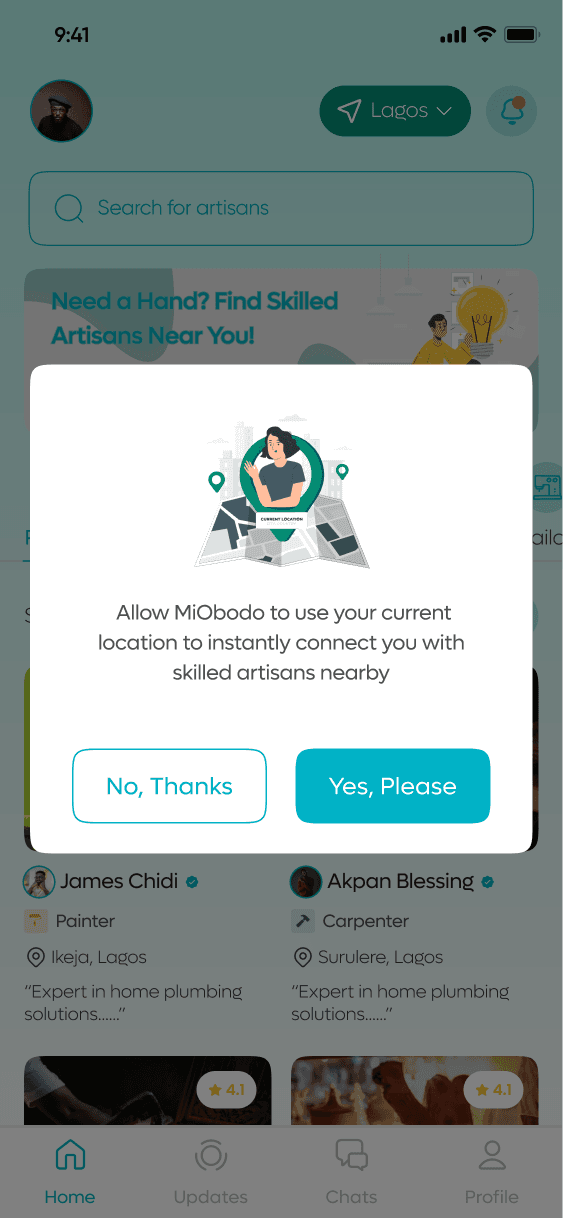
Set your location
Enter your city and neighbourhood so clients near you can find you. MiObodo matches artisans to clients by proximity — the more accurate your location, the more relevant your job requests will be.
Tip: You can update your location anytime from the app settings if you move or work across multiple areas.
Write your bio
Your bio is the most important part of your profile. Tell clients who you are, how long you've been in your trade, what you specialise in, and why you are the right choice. Be specific — "10 years painting commercial interiors in Lagos" beats "experienced painter."
Tip: With the Starter Plan, your About section can be up to 2,000 words. Use that space — it signals professionalism.
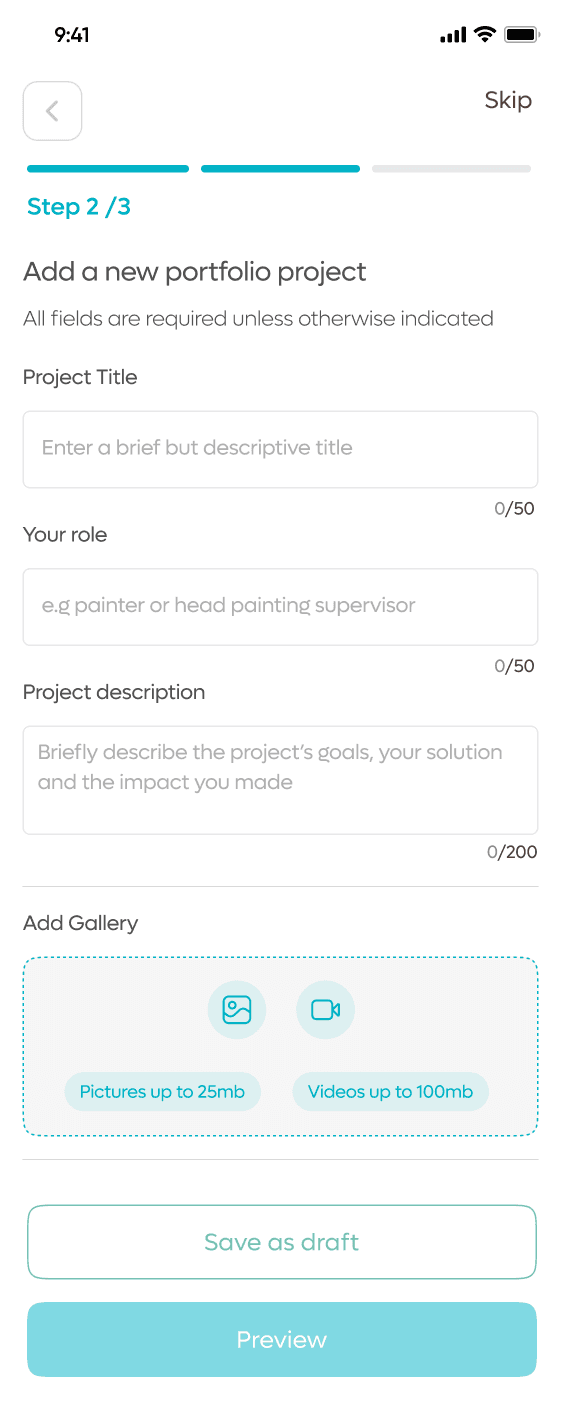
Build your portfolio
Upload photos and short videos of your completed work. This is your strongest selling point — real before/after photos, finished projects, and client job sites. Clients browsing the Updates feed will see your posts, so the more you share, the more discovery you get.
Tip: The Starter Plan unlocks up to 10 portfolio projects. Free accounts can still add work — start building from day one.
Set your availability and go live
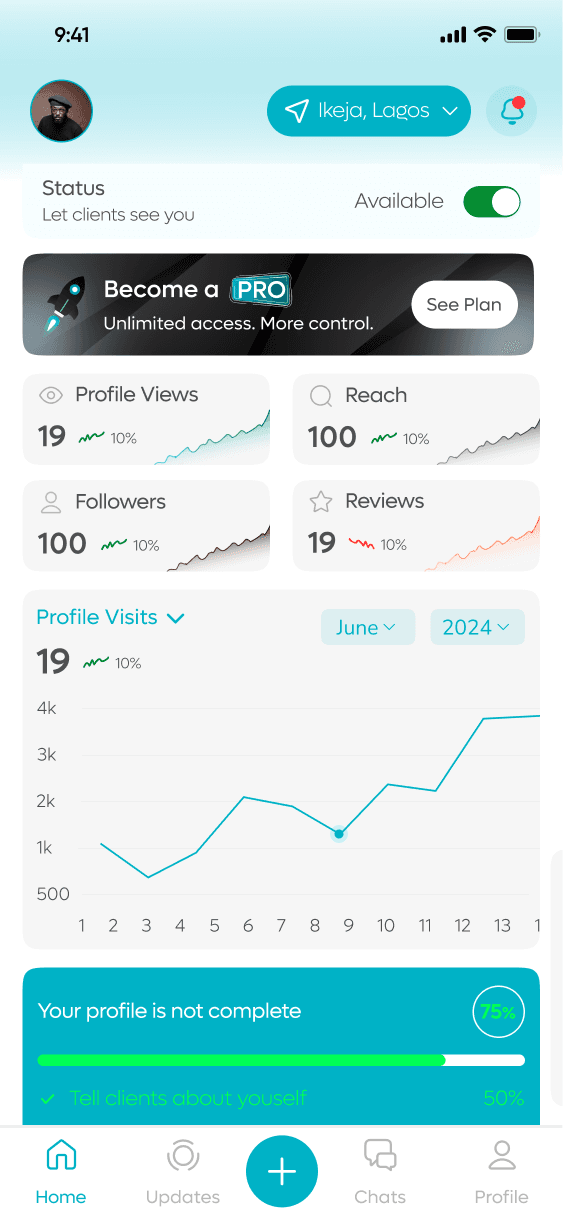
Toggle your availability status to "Available" so clients can see you and send hire requests. When you're busy or on leave, switch it off — clients won't be able to send requests until you switch back on. You stay in control at all times.
Tip: Keeping your availability accurate builds trust. Clients appreciate artisans who are responsive and reliable.
Download MiObodo today.
Free to download. Available on iOS and Android.